Bypassing Microsoft Teams Captcha for Recall.ai Bots
Last updated: May 16, 2025
Your customers’ Teams organizations may have various settings that impact whether a bot can join a meeting. This guide explains the key settings, participant states, potential blockers, and solutions to ensure seamless bot access.
Participant States
These states determine how Teams classifies a bot attempting to join a meeting:
anonymous: User is not signed in.
unverified: User is signed in, but their email domain is neither from the Teams org nor a trusted organization.
verified: User is signed in, and their email domain is from the Teams org or a trusted organization.
Key Settings to Monitor
The following settings in the Microsoft Teams admin dashboard (https://admin.teams.microsoft.com) control bot access:
Meetings → Meeting Settings → Participants
Anonymous users can join a meeting (toggle): Controls whether unsigned-in users (e.g., bots) can join.
Meetings → Meeting Policies → Meetings → Meeting Join & Lobby
Anonymous users can join a meeting unverified (toggle): Determines if anonymous users need verification.
Require a verification check from (dropdown):
Not Required: No verification needed.
Anonymous users and people from untrusted organizations: Verification (i.e. captcha) required unless the domain is trusted.
Users → External Access
Teams and Skype for Business users in external organizations (toggle + input): Defines which external domains are trusted (e.g., Allow all external domains or Allow only specific external domains).
Common Cases and Solutions
Below are four common configurations (blockers for bots to join the meeting), and how to allow bot access. Adjust settings as needed based on your organization’s security requirements.
Case 1: Strict Access (No Anonymous, Verification Required)
Settings:
Meetings → Meeting Settings → Participants
Anonymous users can join a meeting → false
Meetings → Meeting Policies → Global → Meeting & Join Lobby
Anonymous users can join a meeting unverified → false
Require a verification check from
Anonymous users and people from untrusted organizations
Blocker: Bots fail unless their domain is trusted.
Solution:
Set Teams and Skype for Business users in external organizations to:
Allow only specific external domains + add the bot’s email domain.
Case 2: Anonymous Allowed, Verification Required
Settings:
Meetings → Meeting Settings → Participants
Anonymous users can join a meeting → true
Meetings → Meeting Policies → Global → Meeting & Join Lobby
Anonymous users can join a meeting unverified → false
Require a verification check from
Anonymous users and people from untrusted organizations
Blocker: Bots fail with microsoft_teams_bot_not_invited if their domain isn’t trusted.
Solution:
Set Teams and Skype for Business users in external organizations to:
Allow only specific external domains + add the bot’s email domain.
Case 3: No Anonymous, Unverified Allowed
Settings:
Meetings → Meeting Settings → Participants
Anonymous users can join a meeting → false
Meetings → Meeting Policies → Global → Meeting & Join Lobby
Anonymous users can join a meeting unverified → true
Require a verification check from
Anonymous users and people from untrusted organizations
Blocker: Bots fail with microsoft_teams_bot_not_invited if their domain isn’t trusted.
Solution:
Set Teams and Skype for Business users in external organizations to:
Allow only specific external domains + add the bot’s email domain.
Case 4: Fully Permissive (Anonymous and Unverified Allowed)
Settings:
Meetings → Meeting Settings → Participants
Anonymous users can join a meeting → true
Meetings → Meeting Policies → Global → Meeting & Join Lobby
Anonymous users can join a meeting unverified → true
Require a verification check from
Anonymous users and people from untrusted organizations
Blocker: Bots fail with microsoft_teams_captcha_detected if their domain isn’t trusted.
Solution:
Set Teams and Skype for Business users in external organizations to:
Allow only specific external domains + add the bot’s email domain.
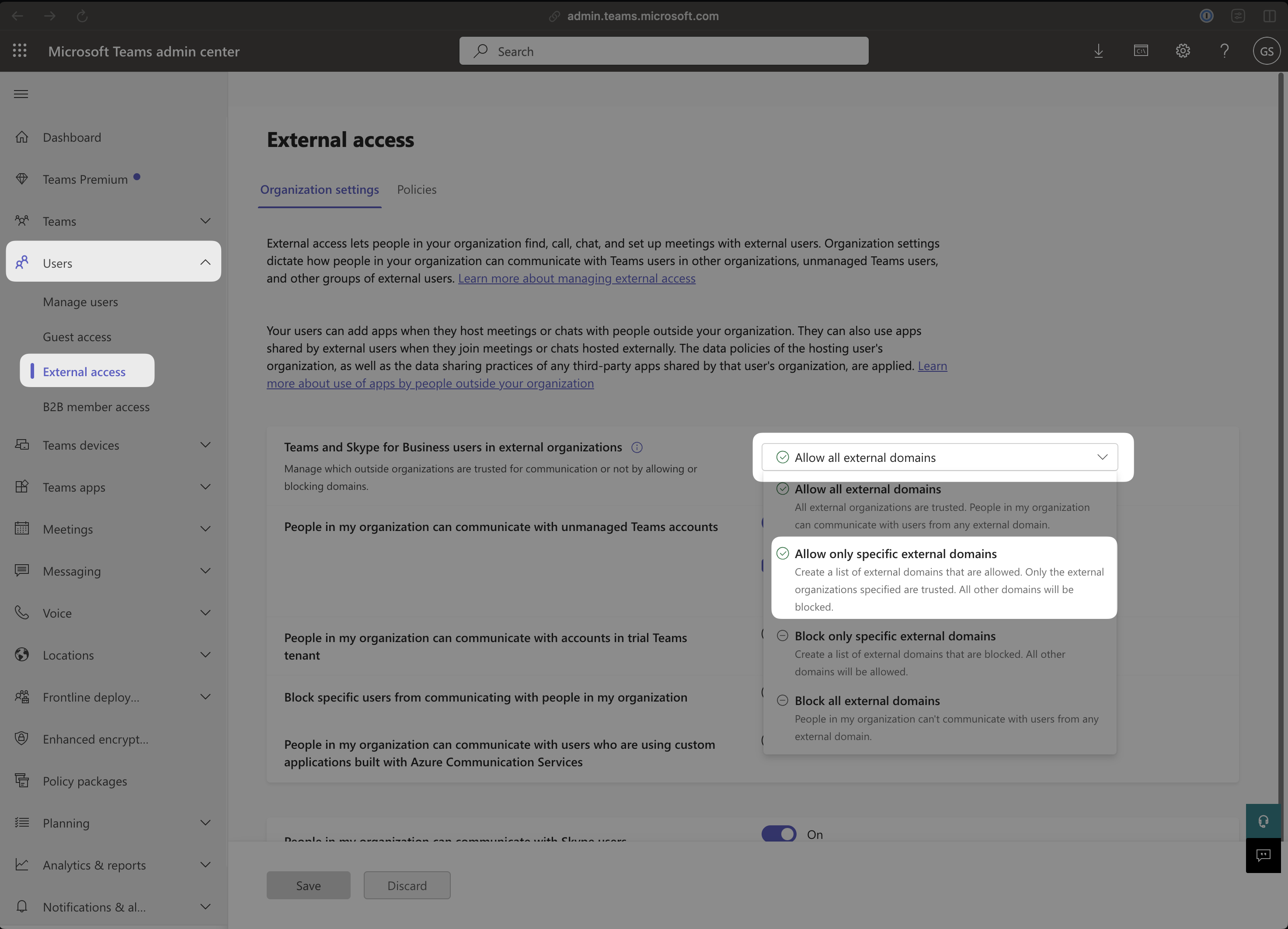
How to add your bot as a trusted organization to bypass captcha
To do this, head to the Teams Admin dashboard > Users > External Access:
https://admin.teams.microsoft.com/company-wide-settings/external-communications
Once there, update the Teams and Skype for Business users in external organizations setting to be "Allow only specific external domains". Finally, add your bot's email domain (used to sign into your bot's teams account) to the external domains list.
Troubleshooting Tips
Check Bot’s Domain: Ensure the bot’s email domain (e.g.,
bot@yourdomain.com) matches the trusted domain entry (yourdomain.com)Test with Admin Access: Use the Teams admin dashboard (https://admin.teams.microsoft.com) to verify settings.
Error Codes:
microsoft_teams_bot_not_invited: Bot’s domain isn’t trusted or settings block unverified users.
microsoft_teams_captcha_detected: Anonymous and unverified access is allowed, but the bot’s domain isn’t trusted.
Conclusion
To ensure bots can join meetings, configure the External Access setting to trust the bot’s domain. Adjust anonymous and verification settings based on your security needs, referencing the cases above. For further assistance, consult the Recall.ai documentation or your Teams admin.